Game Warden Account Setup Guide for FedRAMP Deployments
Game Warden enables you to deploy your application to a FedRAMP network using a secure, managed deployment environment with built-in compliance support. This guide walks you through setting up your account and getting started.
Create your account
-
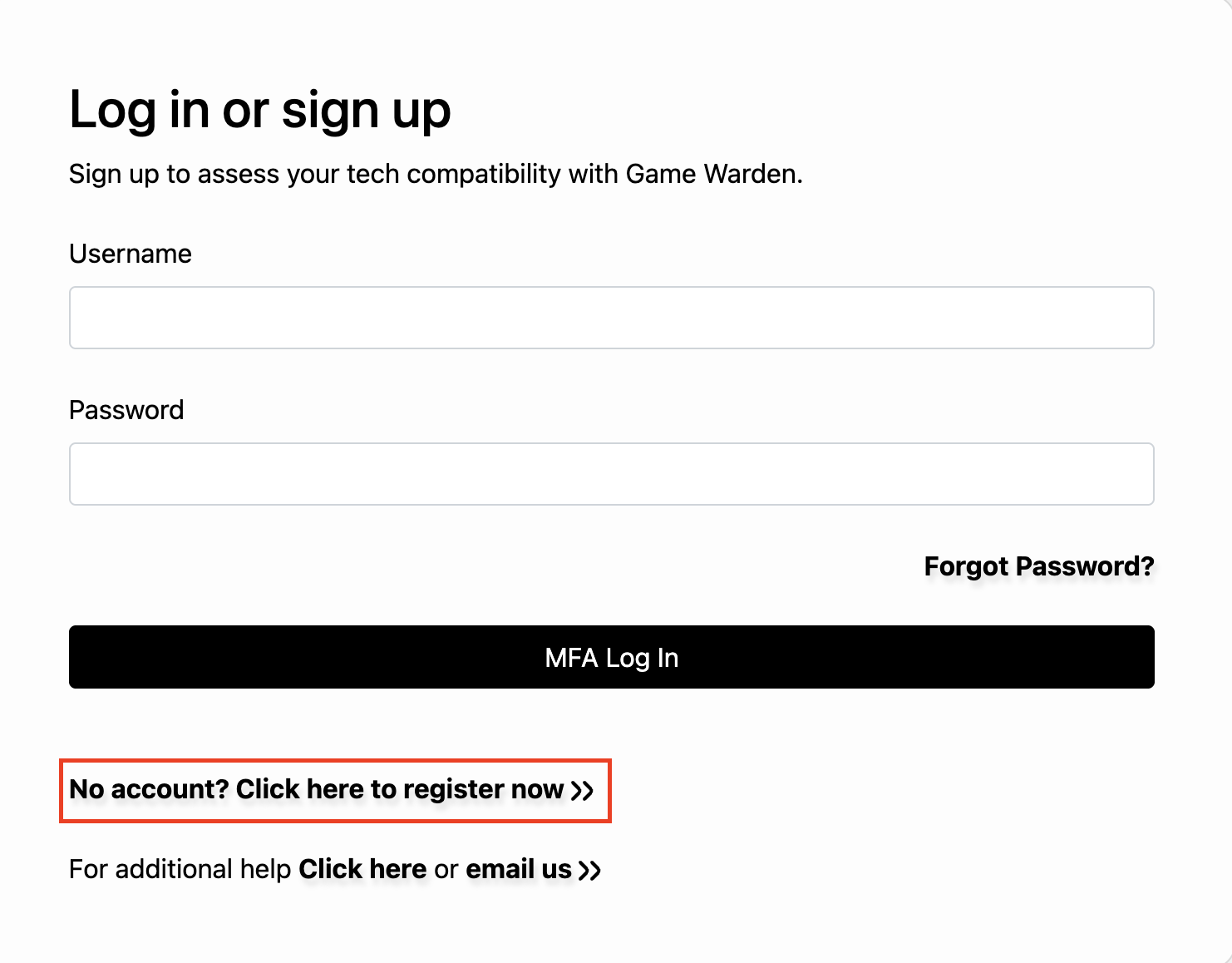
Visit Game Warden for FedRAMP Deployment, then click No account? Click here to register now.
-
On the Regular User Registration page, enter the following:
- Your first name and last name.
- Select the organization your affiliation belongs to; otherwise, select Other.
- Select your rank or pay grade. The military organizes ranks by service branch, and civil service grades range from AA to SCS. Select N/A if none apply.
- Enter your organization name.
- Enter your organization's location (at minimum, the city and state).
- Enter a username and your work email address.
- Optionally, provide an access note. This helps administrators assign the appropriate access.
- Create and confirm your password.
-
Click Register.
-
When prompted, complete the multi-factor authentication process:
- Install an authentication app (e.g., FreeOTP, Microsoft Authenticator, or Google Authenticator) on your mobile device.
- Open the app and scan the QR code displayed on the screen.
- Enter the current code from your authenticator app into the Six digit code field, and optionally provide the device name to help manage your OTP devices.
- Click Submit.
- Review the consent form and click Accept to continue.
-
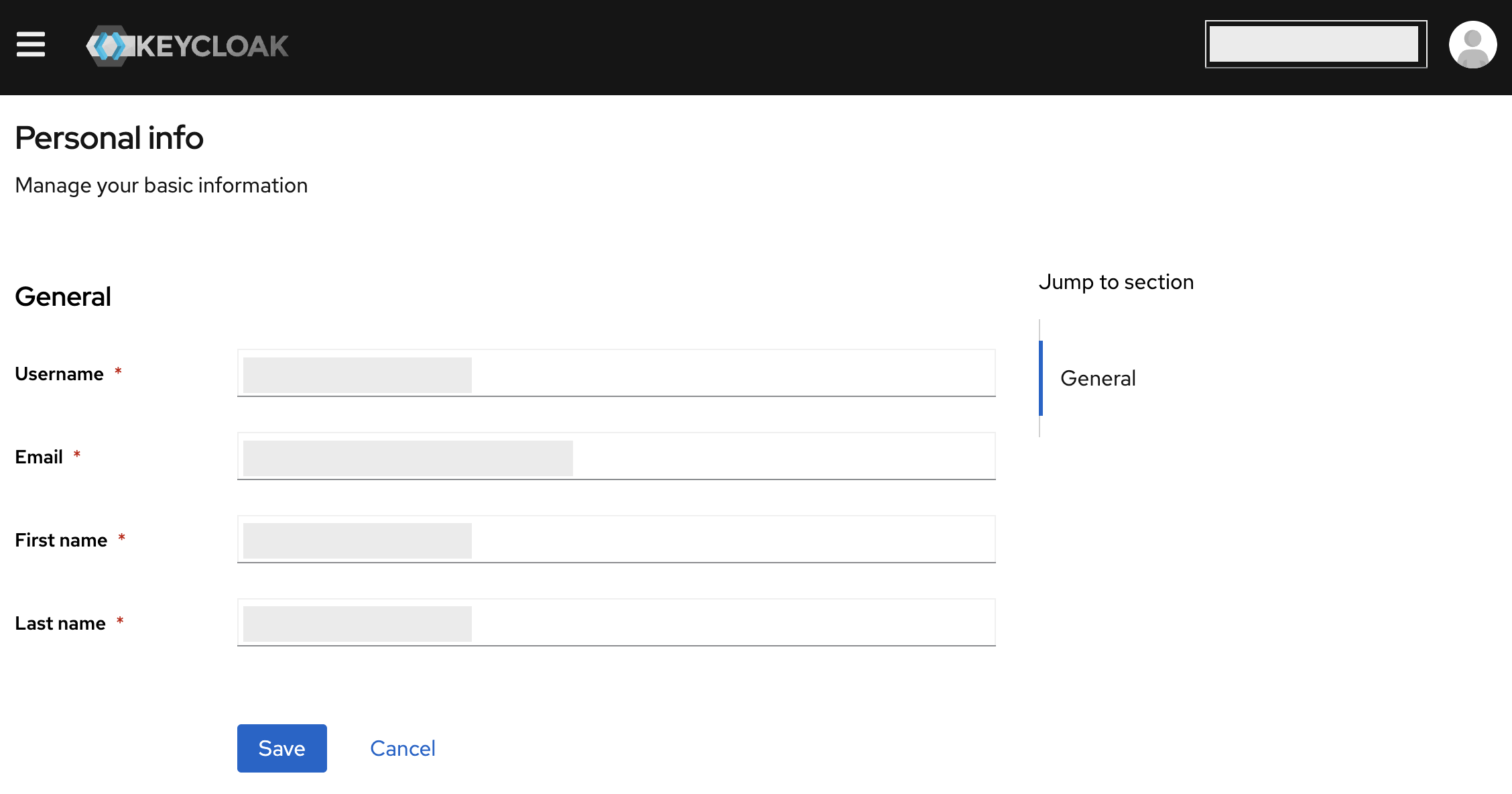
On the Keycloak Personal Info page, confirm your information and click Save.
Log in to your account
- Once your account has been set up by Second Front, visit Game Warden for FedRAMP Deployment.
- Enter the username and password you created during registration.
- Click MFA Log In.
- Enter the current code from your authenticator app and click MFA Log In.
- Review the consent form and click Accept to access the Game Warden app.
Troubleshooting & best practices
- Forgot your password? Click Forgot Password? on the login page to reset your password.
- Need more help? Use the Click here or email us links at the bottom of the page.
- Keep your MFA method private and secure.
- Always log out when you're away from your computer or working on a shared device.
Add your team to Game Warden
Once your user account is set up, you can invite your team to Game Warden from within the app.
-
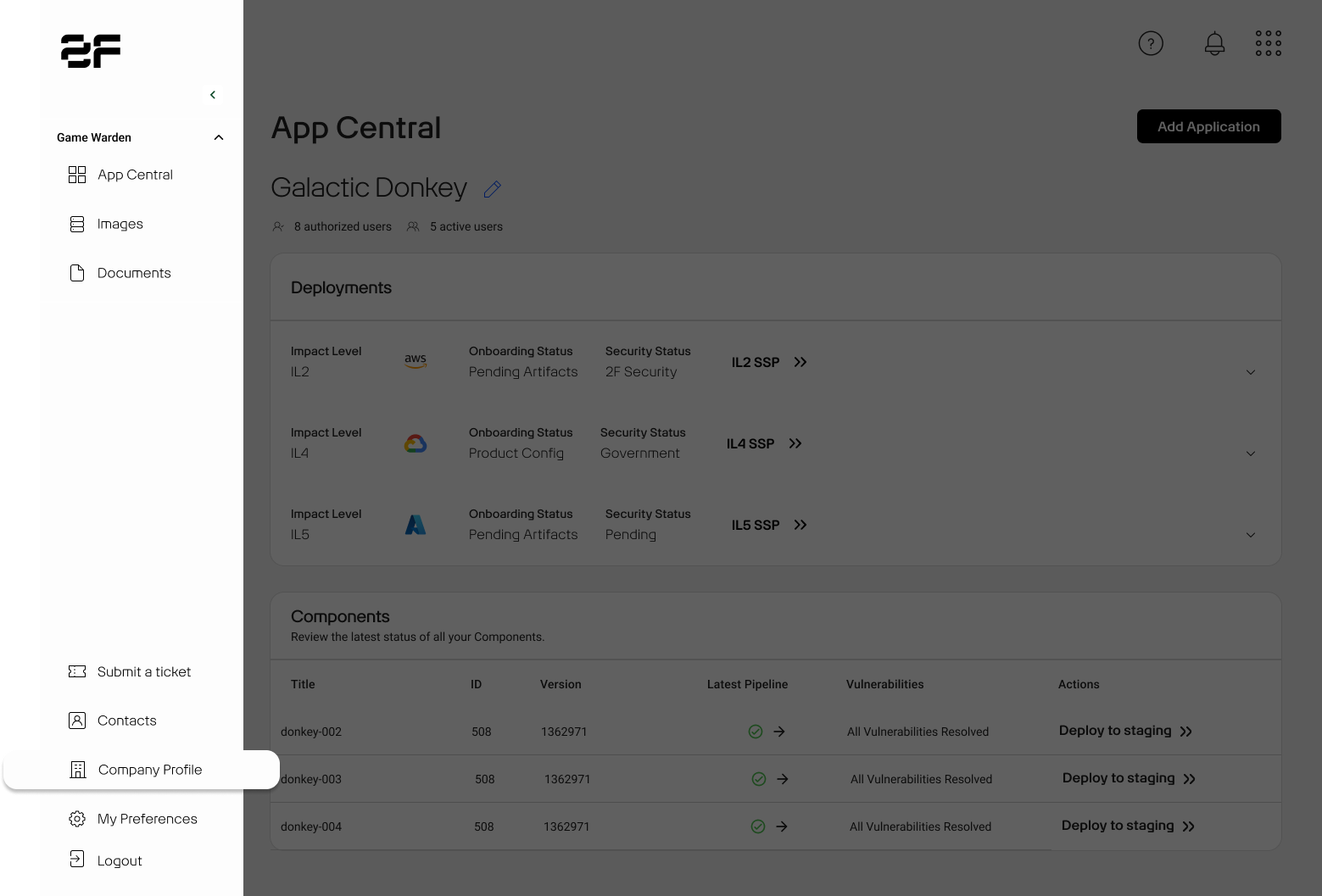
Go to the Company Profile tab in the left sidebar.
-
Click Invite Team Member.
-
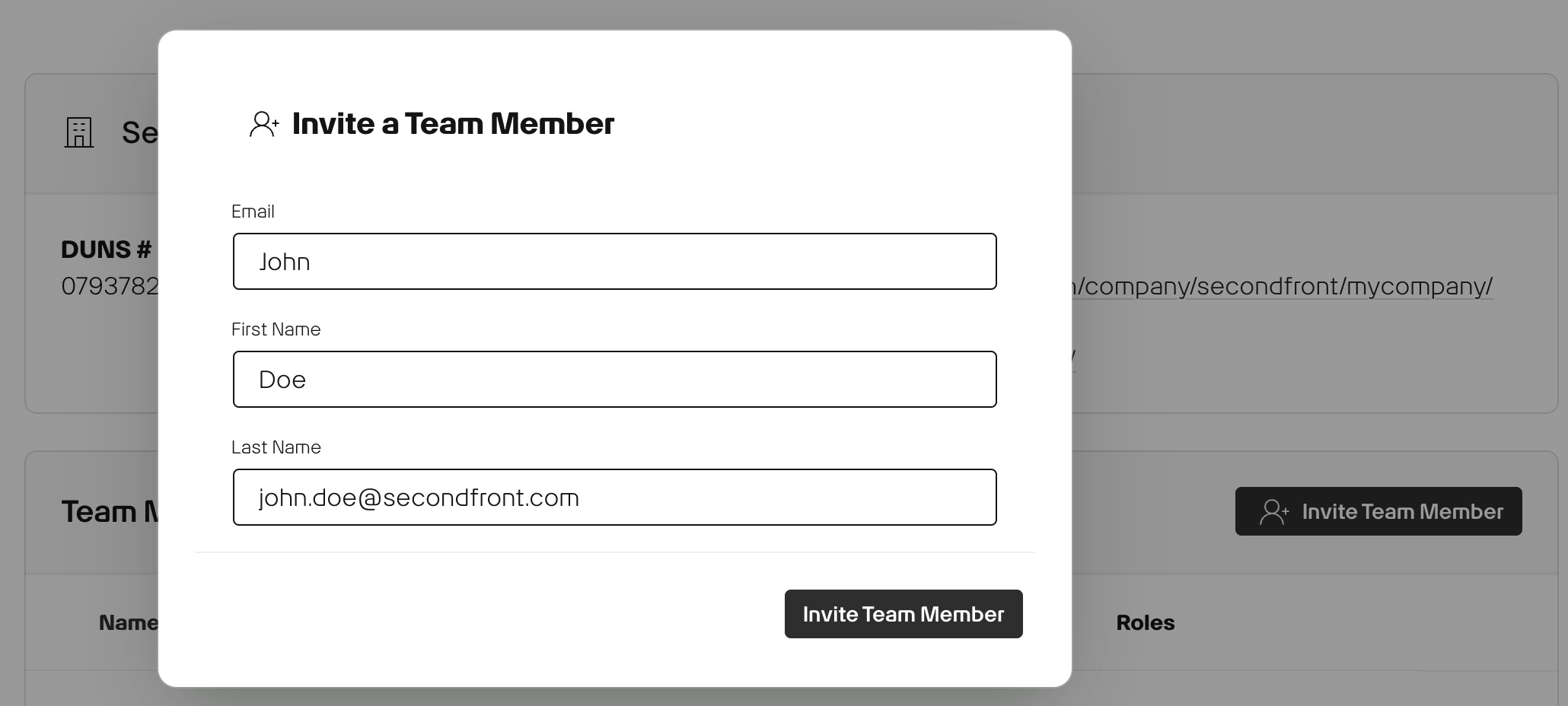
Fill in each team member's email and name, then click Invite Team Member.
Your team member will receive an email invitation to join the Game Warden app.
Warning
If your team member's email domain is different from yours, contact your Mission Success Manager (MSM) for assistance.
Add Customer Admin privileges to team members
If you have Customer Admin privileges, you can grant the same access level to other team members. Follow these steps:
- Locate the team member in your user list, then click the option menu (⋮) next to their name.
- Select Edit User from the dropdown.
- In the Edit a Team Member modal, navigate to the Roles section and click Make user a Customer Admin.
- Click Submit to save the changes.
The team member will immediately receive Customer Admin permissions and can perform all administrative functions within your organization.
Customer and Customer Admin permissions
| Capability | Customer | Customer Admin |
|---|---|---|
| Submit tickets | ✅ | ✅ |
| Access scan results | ✅ | ✅ |
| Download scan artifacts | ✅ | ✅ |
| Delete deployments | ❌ | ✅ |
| Set up Harbor credentials | ❌ | ✅ |
| Fill out Body of Evidence forms | ✅ | ✅ |
| Resolve vulnerabilities | ✅ | ✅ |
| Deploy images | ❌ | ✅ |
Remove a team member from your Game Warden app
Users with the Customer Admin role can remove a team member by following these steps:
- In the left sidebar, go to the Company Profile tab.
- Search for the team member by name and click the option menu (⋮).
- Select Remove User.