DIU IT Categorization and Selection Checklist Requirement
For applications whose authorization goes through the Defense Innovation Unit (DIU), a DIU IT Categorization and Selection Checklist (ITCSC) must be completed and approved as part of your security categorization, alongside the Appointment of Program Manager Letter.
Important
The ITCSC applies to any application whose deployment is authorized through DIU. Deployments authorized outside of DIU (for example, FedRAMP or Commercial) are not subject to this requirement.
What is the ITCSC?
The ITCSC is DIU's adaptation of the security categorization checklist required under DoDI 8510.01, Risk Management Framework (RMF) for DOW Systems. It's the first step toward getting your system authorized on Game Warden: it captures what your system is, what data it handles, and how sensitive that data is, which sets the security baseline for the rest of your authorization.
It documents your application's system identification, technical description, authorization boundary, required security overlays, National Security System (NSS) designation, cloud impact level, privacy/PII exposure, and the resulting security categorization. It covers unclassified systems at Impact Level (IL) 2 through 5.
You can complete this requirement in the Game Warden app.
Terminology
- RMF (Risk Management Framework): The DOW process for getting a system approved to operate.
- Categorization: Deciding how sensitive your system is: Low, Moderate, or High.
Who's involved
| Role | Responsibility |
|---|---|
| Mission Success Manager (2F) | Your point of contact. Reviews your answers and moves the ITCSC into the approval process. |
| System Owner / Program Manager (Gov) | Owns the system and its data. Provides the answers and signs. |
| Mission Owner (Gov) | Confirms the mission context and how sensitive the data is. |
| Authorizing Official (DIU) | Accepts the risk and approves. Signs at the end — you don't need them to fill anything in. |
Complete the ITCSC
Plan about 30 minutes with the right people, and have ready: a short description of your system, the kinds of information it handles, and an architecture diagram if you have one.
Open the checklist
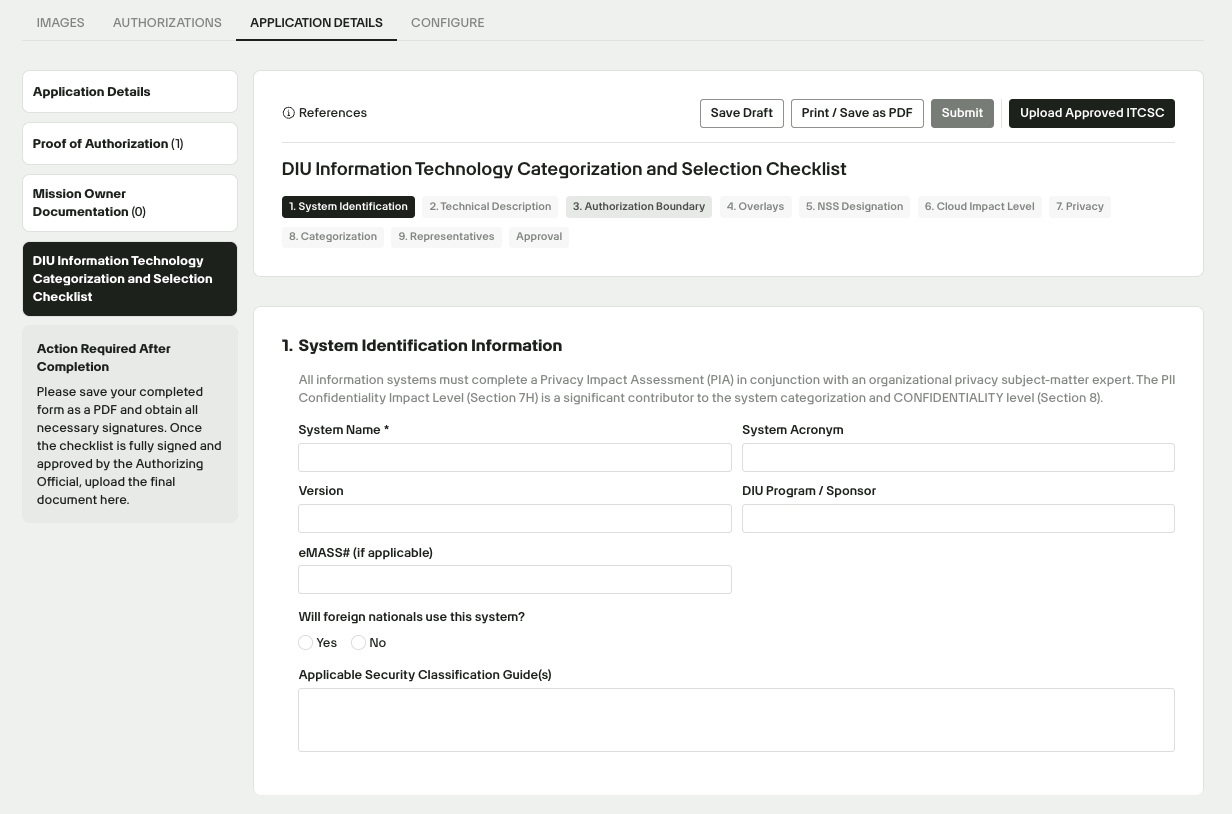
In App Central, go to the Application Details tab, then select DIU Information Technology Categorization and Selection Checklist in the left navigation.
Complete each section
Click References at any time for definitions of the citations shown in each section's guidance.
- System Identification: Enter the system name, acronym, version, DIU program or sponsor, and eMASS number if applicable. Use the same system name as your eMASS record, if you have one.
- Technical Description: Describe what the system does, who uses it, where and how it operates, and how it supports the mission or other systems. Include major hardware and software components, services the system provides, whether any services are publicly accessible, and how the system stores, processes, and transmits information. If you are making a major modification, describe the change and its purpose.
- Authorization Boundary: Describe what belongs to the system and what information exchanges or external interfaces cross its boundary. Because the system runs on Game Warden, describe what the system inherits from the Game Warden boundary and what falls within your system's own boundary. Include an architecture or boundary diagram if one is available.
- Overlays: Answer each Yes/No question based on your system's functions, information, and environment. If you answer Yes, provide the requested details in the Notes field. The checklist covers overlays for intelligence, cross-domain solutions, nuclear command and control, space platforms, classified information, mission-specific functions, facility-related control systems, non-U.S. person access, and financial management.
- NSS Designation: Answer each question about intelligence, cryptologic activities, military command and control, weapons systems, direct military or intelligence missions, classified information, mission impact, and existing NSS designation. The form automatically determines whether the system qualifies as a National Security System based on your answers.
- Cloud Impact Level: Answer the questions about CUI, PII, and personal identifiers. The form uses these answers to determine the applicable unclassified DOW Cloud Impact Level (IL2, IL4, or IL5). If the system retrieves information by a personal identifier such as a name, SSN, or date of birth, provide the required SORN number. Classified systems are outside the scope of this checklist.
- Privacy: Work with your DIU Privacy Officer or servicing privacy office to complete this section. Identify whether the system handles PII, describe the context in which you use the PII, and select every type of PII the system stores, processes, or transmits. Describe the potential harm if the PII were compromised. The form uses these answers to suggest a PII Confidentiality Impact Level. Adjust the suggested level when appropriate.
- Categorization: Select each applicable information type your system handles. The form populates provisional Confidentiality, Integrity, and Availability levels based on NIST SP 800-60. Review those values and change them only when you have a documented reason. Record the justification for any change. The final security categorization uses the highest Confidentiality, Integrity, or Availability value across the applicable information types, with the PII confidentiality level also contributing to Confidentiality.
- Representatives: Provide the names and contact information for the RMF team and other required government representatives, including the Authorizing Official, Program Manager, Security Control Assessor, ISSM, Primary POC, and other applicable roles.
Save your progress
Click Save Draft at any point to save your progress and return later.
Complete the Approval section
Fill in the contact fields for the Authorizing Official (DIU) and Program Manager/ISSO.
Export the checklist
Once every section is complete, click Print / Save as PDF to export the finished checklist.
Tip
Not sure about a value? Keep the suggested value and note why — your Mission Success Manager can help. When in doubt about privacy or classification, ask before you guess.
Get it signed
After you export the completed checklist as a PDF, obtain signatures from both required signatories:
- Authorizing Official (DIU)
- Program Manager/ISSO
Upload your signed ITCSC in Game Warden
Once fully signed, upload it back to the same section so Second Front can verify it.
- Return to the DIU Information Technology Categorization and Selection Checklist section for your application.
- Click Upload Approved ITCSC.
- Choose the signed PDF from your device. Only
.pdffiles are accepted. - Click Upload.
Info
Uploading a new file replaces the previously uploaded Approved ITCSC.