Manage SAST Scan Findings
SAST (Static Application Security Testing) scanning analyzes your source code for security vulnerabilities before your application reaches production. The SAST Findings feature provides a centralized place to upload scan results, review discovered vulnerabilities, and document your remediation or justification decisions, keeping your application on track for security approval without managing evidence across separate tools.
Info
For DOW deployments, accepted findings and justifications are automatically added to your Body of Evidence (BoE), satisfying continuous monitoring requirements without additional documentation overhead.
When are SAST artifacts required?
SAST scan results are required for any of the following authorization events:
- Initial Authorization — the application has not yet received authorization from a government accrediting official.
- Renewal Authorization — the application is currently undergoing authorization renewal with a government accrediting official.
- Significant Change Authorization — the application requires a new authorization due to a major version release or significant change from the previous authorization.
- Ad hoc requests — to support a government accrediting official's continuous monitoring requirements.
Upload SAST scan results
- In the left navigation, click Findings, then select the SAST Findings tab.
- Click Upload and Parse Files.
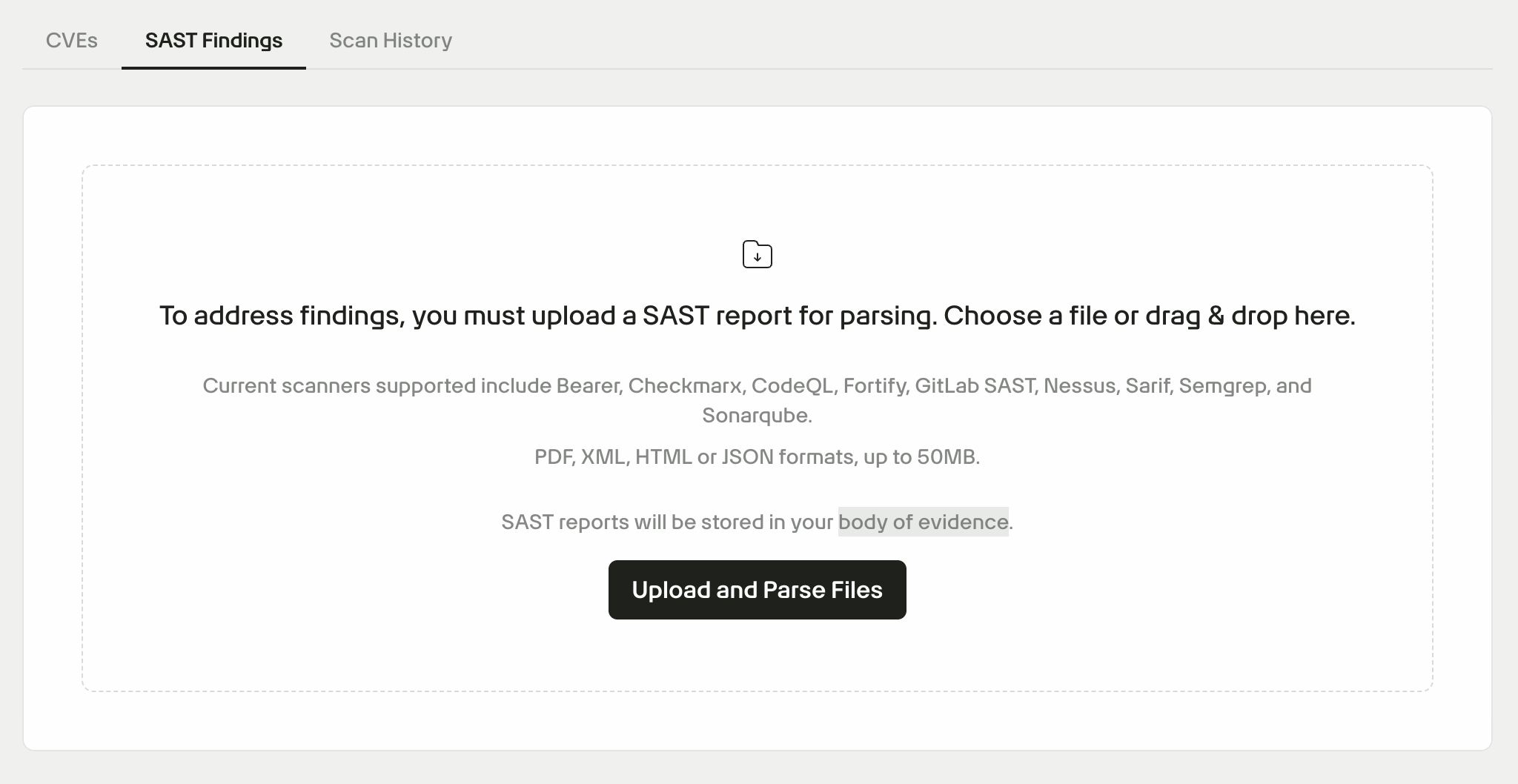
- In the Upload SAST Report modal, select New Report and enter a name for the report.
- Drag and drop your file into the upload area, or click Upload Files to browse.
Accepted formats: PDF, XML, HTML, JSON (50MB max).
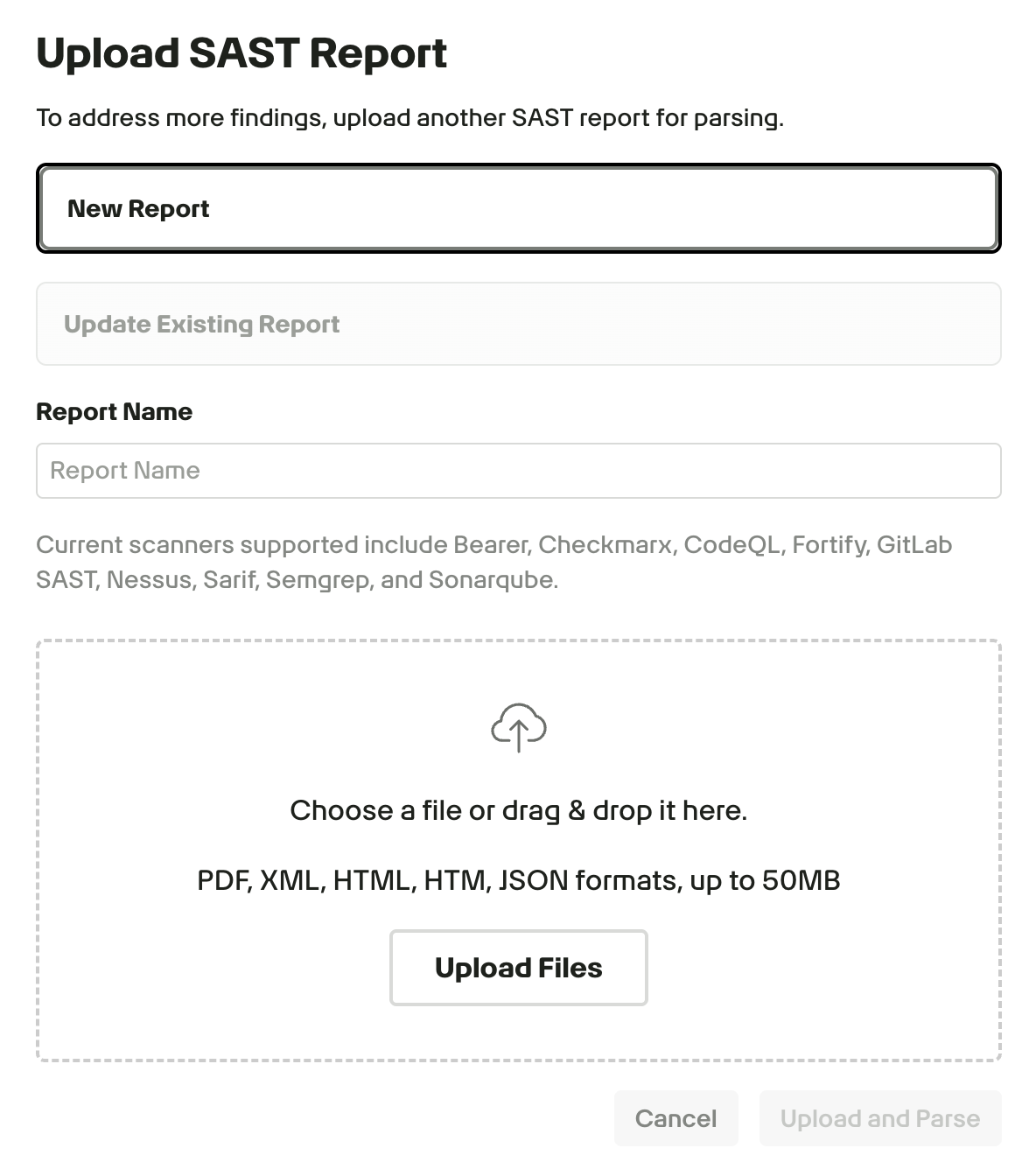
- Click Upload and Parse. Game Warden will automatically extract and normalize findings into the dashboard.
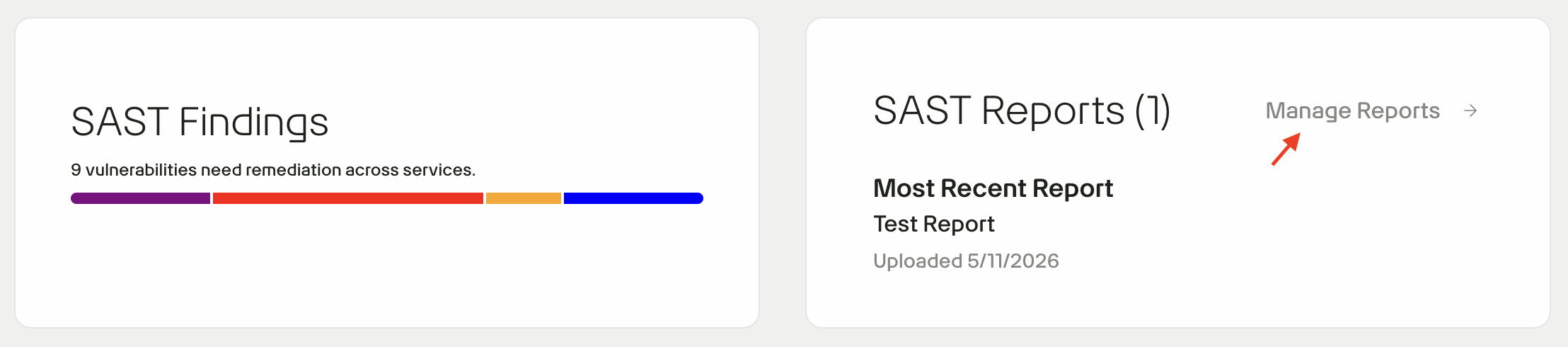
- Click Manage Reports to access the report dashboard.
- Click Upload a New Report.
- Select an option:
- To add a new report, follow Step 3-5 of this instruction.
- To update an existing one, select Update Existing Report, then choose the report to update from the dropdown.
- Click Manage Reports at the top of the dashboard.
- Locate the report and click the options menu (⋮).
- Select Delete Report.
Supported scanners
Game Warden currently supports Bearer, Checkmarx, CodeQL, Fortify, GitLab SAST, Nessus, SARIF, Semgrep, and SonarQube.
Apply justifications to SAST findings
Once findings are parsed, each vulnerability requires a disposition before your application can proceed through the security review process. Undispositioned findings will remain open and may block approval.
To apply a justification:
- Select a finding from the dashboard.
- Choose a Justification Decision (e.g., False Positive, Won't Fix).
- Enter the reason the vulnerability will not be remediated.
-
Submit the justification.
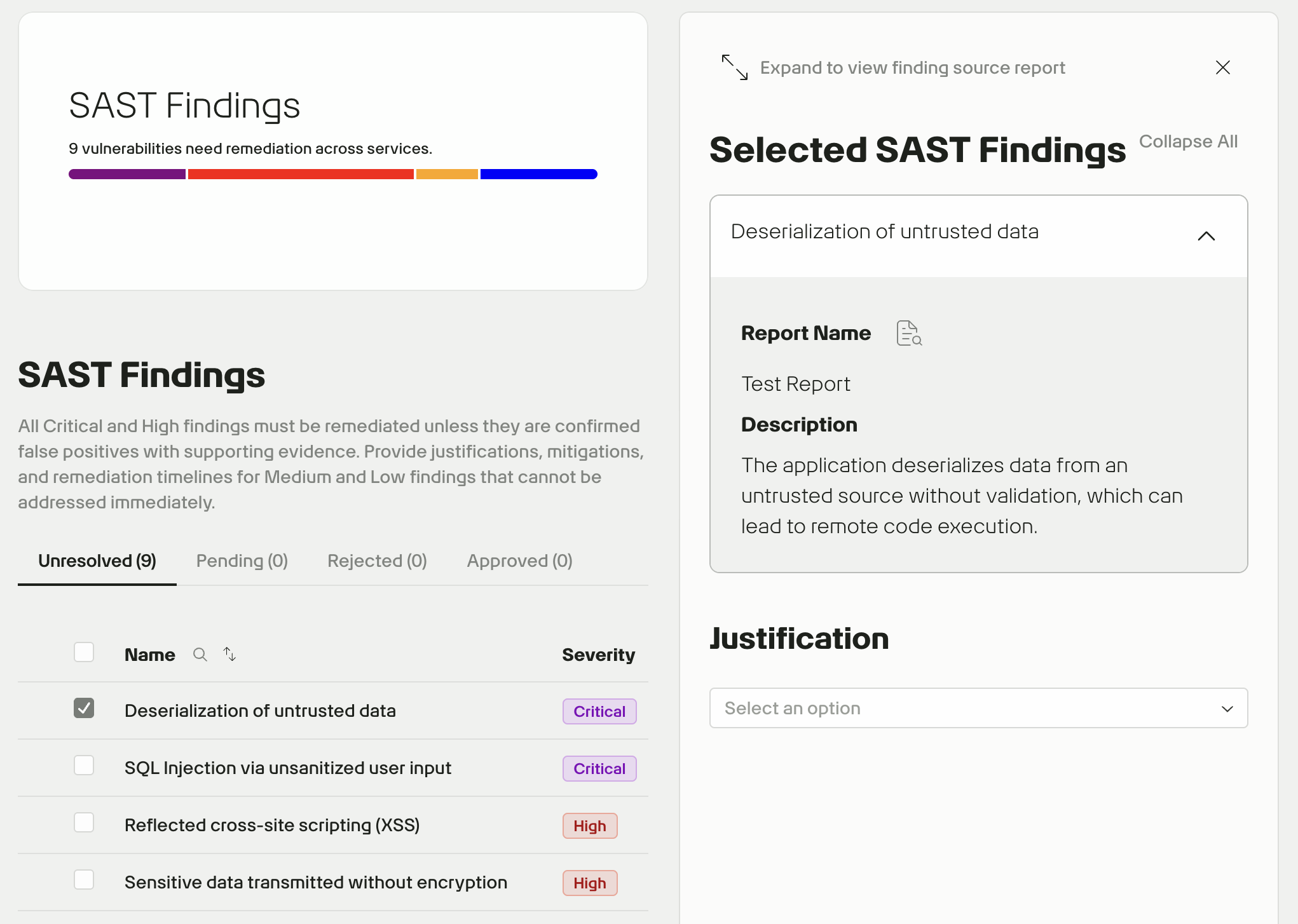
Submitted justifications move to the Pending tab for review by the 2F Security team. You can edit a justification from this tab if updates are needed before review is complete.