Inline Configuration Editor
Users with Customer Admin permissions can use the Inline Configuration Editor to edit your application's configuration files directly.
To access the editor:
- Log in to Game Warden and select App Central from the left-hand navigation menu.
- Select the Configure tab at the top of the application details page, then click the Repository subtab.
Info
This feature is behind a feature flag. Contact your Mission Success Manager to have it enabled.
Edit and submit files
- In the file tree, select the file you want to edit.
- Make your changes in the editor. You can edit multiple files before submitting.
-
Click Save Draft to save your work.
4. When ready, click Save and Submit to send your changes for review and approval.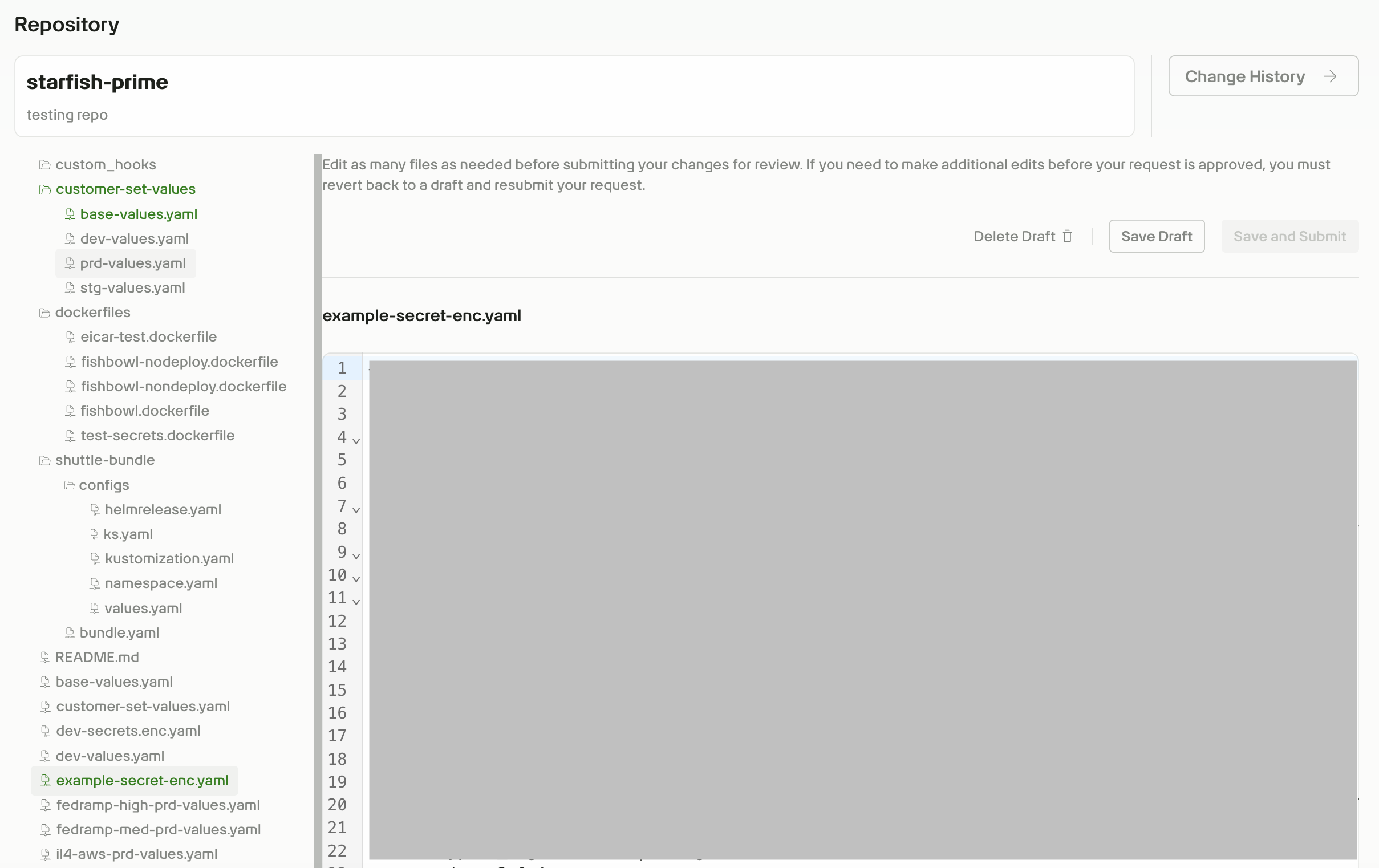

Note
While your changes are under review, all other files in the repository are locked. To make additional edits before approval, click Revert to Draft.
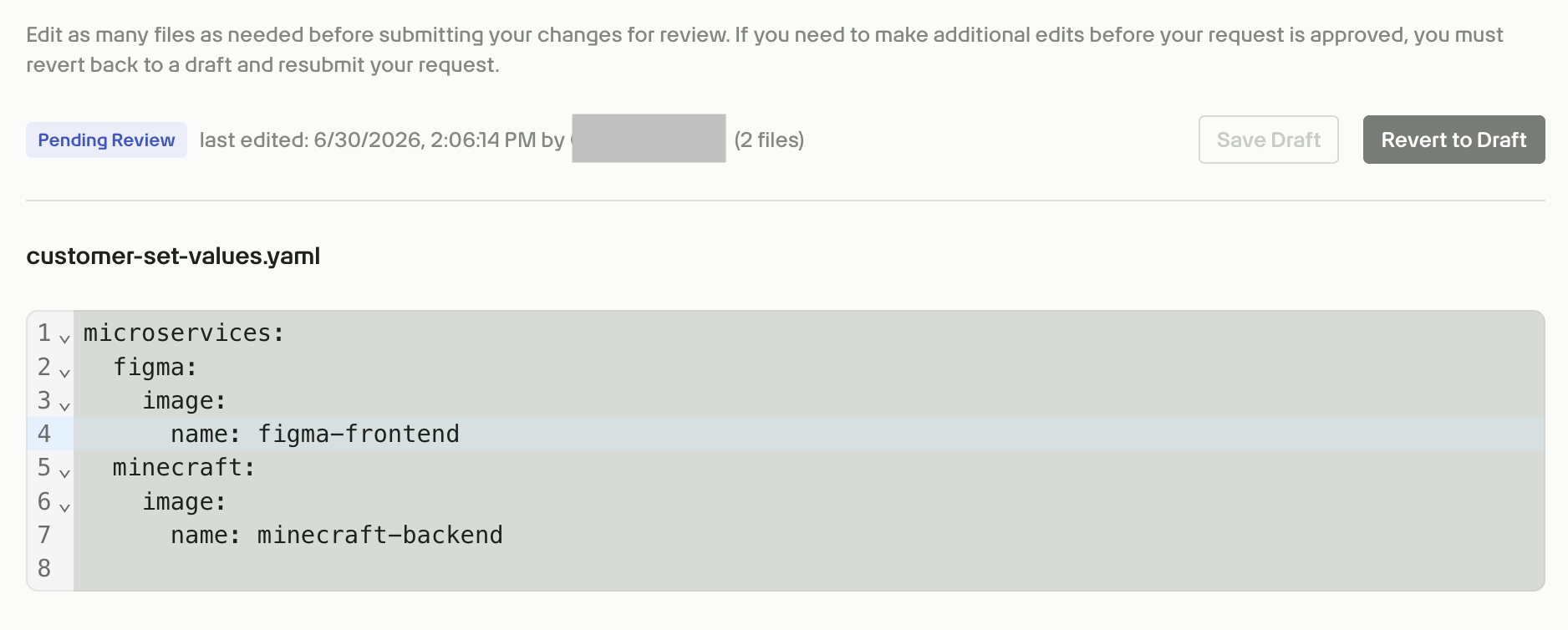
If you are not ready to submit immediately, return to the Repository page and select any updated file to restore the Save and Submit button.
Once your changes are approved, image scanning restarts automatically for this application.
Change history
- Click the Change History button in the top right corner of the repository card to view past modifications and pull requests for the repository.
-
Review the Status column to track the progress of each change request:
Status Description Pending Review Your configuration changes have been submitted and are currently awaiting approval. Merged The submission was approved and the changes have been successfully applied to the repository. Rejected by 2F The Second Front team reviewed the submission and denied the changes. Abandoned The change request was canceled or discarded by the author before the review process was completed.