Create and manage your Plan of Action & Milestones
A Plan of Action & Milestones (POA&M) is a required security artifact for tracking known security weaknesses, remediation plans, and progress toward resolution. Customers pursuing FedRAMP Certification must create and maintain an active POA&M. See Create Plan of Action & Milestones for more information.
This guide explains how to create, manage, and track POA&M items in the Game Warden app.
Create a POA&M item
Use the following steps to add a Common Vulnerabilities and Exposures (CVE) finding to the POA&M list:
- In the Game Warden app, go to the Findings page.
- Select the CVEs tab to view findings from scans conducted by Game Warden. Select the SAST tab to view SAST scan results that you uploaded.
- In either tab, select the Unresolved tab to view active findings. Toggle the view to By vulnerability to display the full list.
-
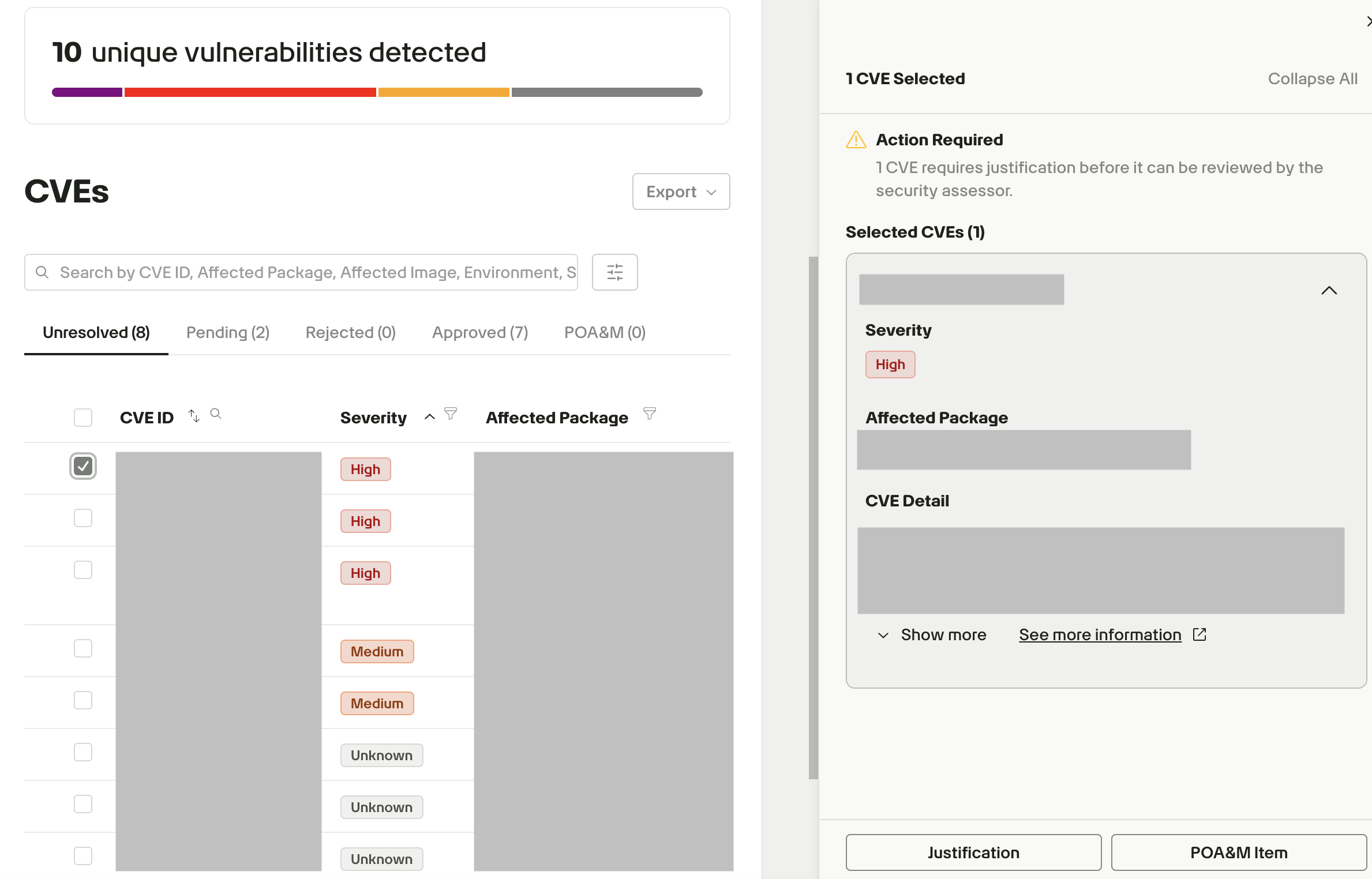
Select the CVE you want to add to the POA&M list, then click POA&M Item.
-
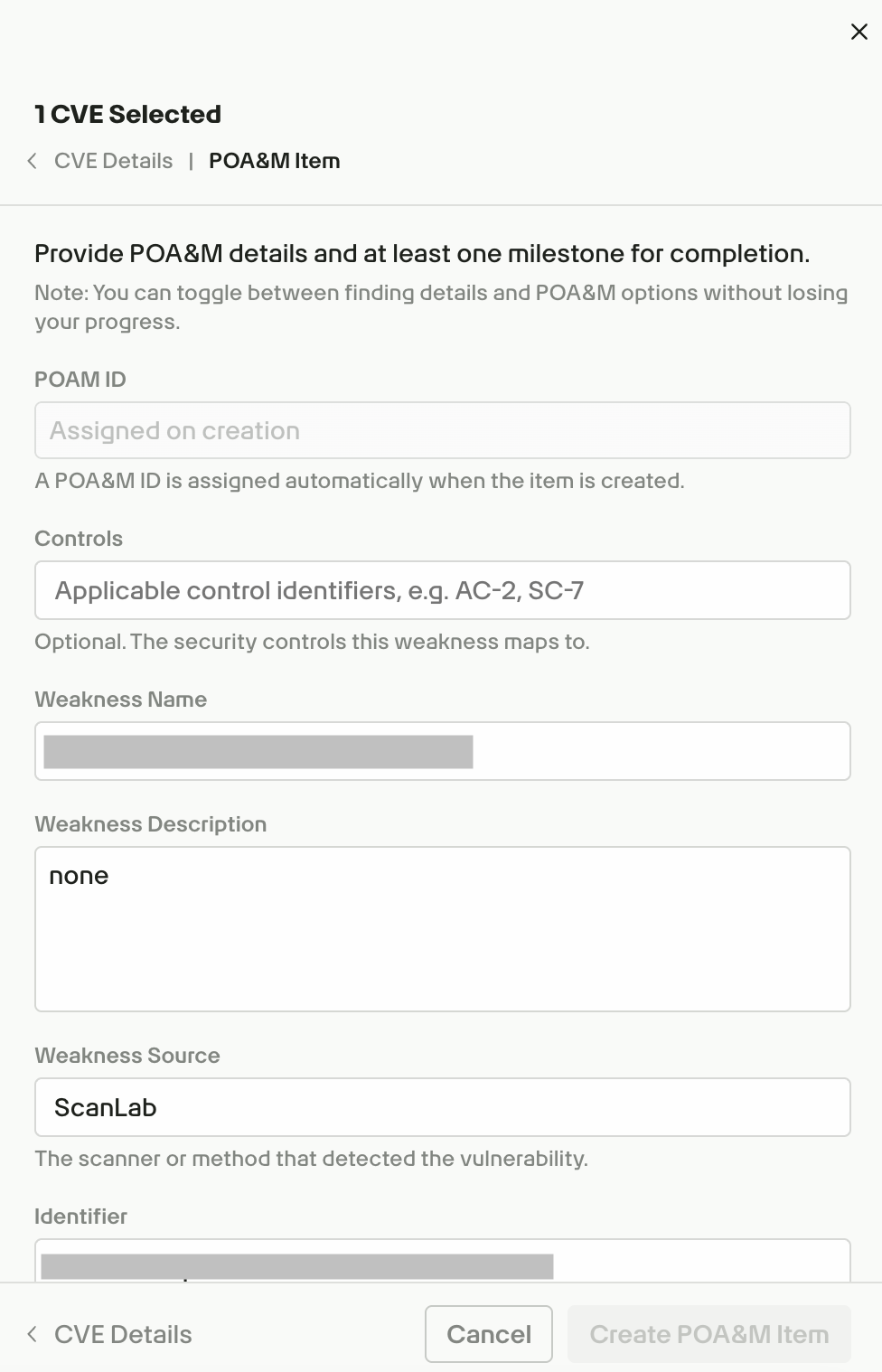
Enter details about how and when you will resolve the issue:
- POAM ID: Game Warden automatically assigns an ID when you create the POA&M item.
- Controls: Enter the applicable security control identifiers, such as
AC-2orSC-7. This field is optional. - Weakness Name: Enter a name that identifies the security weakness.
- Weakness Description: Describe the security weakness, including what is affected and the security risk it presents.
- Weakness Source: Enter the scanner or method that detected the vulnerability.
- Identifier: Enter the vulnerability identifier provided by the scanner or source, such as a CVE or GHSA identifier.
- Point of Contact: Enter the name or role responsible for resolving the weakness.
- Risk Rating: Select the appropriate risk rating for the finding.
- Detection Date: Enter the date the weakness was detected.
- Risk Adjustment: Indicate whether the finding requires a risk adjustment.
- Operational Requirement: Indicate whether the finding is an operational requirement.
- Deviation Rationale: If applicable, explain why the risk adjustment or operational requirement applies. Include any mitigating factors or compensating controls that reduce the likelihood or risk exposure. Indicate whether the affected component is internally or externally facing.
- Vendor Dependency: Indicate whether remediation depends on a vendor.
- Resources Required: Specify any resources needed beyond your current resources. Include estimated staff time in hours when applicable.
- Overall Remediation Plan: Describe how you plan to remediate the weakness, including the actions required to resolve it.
- Scheduled Completion Date: Enter the date by which you expect to fully remediate the weakness. Use a realistic date, particularly when remediation extends beyond the standard SLA window.
- Milestones: Add at least one milestone that describes a specific action required to remediate the weakness and includes a scheduled completion date. Add additional milestones when remediation requires multiple steps.
-
Click Create POA&M Item. Confirm that the CVE appears in the POA&M tab.
Close a POA&M item
After you remediate a weakness, close the corresponding POA&M item to indicate that the issue has been resolved.
To close a POA&M item:
- Navigate to the Continuous Monitoring page and select the POA&Ms tab.
- Locate the remediated POA&M item in the list and click the option menu (⋮).
- Select Close POA&M from the dropdown menu.
- Describe the remediation steps applied to the CVE and upload your supporting evidence.
- Click Close POA&M to confirm and submit.
After you close the item, it is removed from the POA&M dashboard in Findings. The closed item remains available on the Continuous Monitoring page for recordkeeping and tracking.
View the Continuous Monitoring page
The Continuous Monitoring page provides a central view of the authorization status, CVE findings, and POA&M items for your selected deployment. Use this page to monitor your application's security posture and track remediation activities.
To view your POA&M items:
- Go to the Continuous Monitoring page.
- Select the POA&Ms tab to view all open and closed POA&M items.
- To create a new POA&M item, click Add POA&M Item.